The Orders tab is accessed on the right side of your Image Browser, alongside the Tag Options. The Orders tab can be collapsed by clicking the Arrow, or by double clicking "Orders"
Adding a New Order
The drop down menu to create a New Order will allow you to create multiple orders within the same project. For example, you may want to order a gallery wall and album for the bride and groom, just an album for the groom's parents, and an album with a print for the bride's parents.
You can change the name of the order by using the pencil icon on the right of each name, and add a new order at the bottom of the menu.
Add an Album
Choosing Add Album will bring up this window. You will have a drop down menu of all the albums currently designed in the project (perfect for adding a parent's album to the parent's order, main album to bride and groom's, etc).
You also have the option of adding an album that will be designed later, for example if your client would like to add a small photo book for the flower girl. You can add that album to the order and finish the actual design later.
There is also an area for inputting notes, quantity, and price.
Click Add and the album will be added to your order form!

Adding a Gallery
Choosing to Add Gallery will bring up the rooms currently designed in your project, with a preview of the selected design.
You can add notes, quantity, and price to this selection.
Clicking Add will add the gallery to your order form!

Adding a Print
For each print, choose the material type in the top menu and the size in the second menu. Add any notes in the note box. Input the quantity and price for the item. You can crop the image and rotate it slightly using the sliders below the picture. Then select Add.
Add Card
Select Add card and choose the card from the drop down menu or enter a custom title for the card information.
Adding Custom Items

If your studio offers items not provided within Fundy Designer (for example, photo boxes or a DVD slideshow), you can add this item with the price as a Custom item.
Click Add to include in the order form!
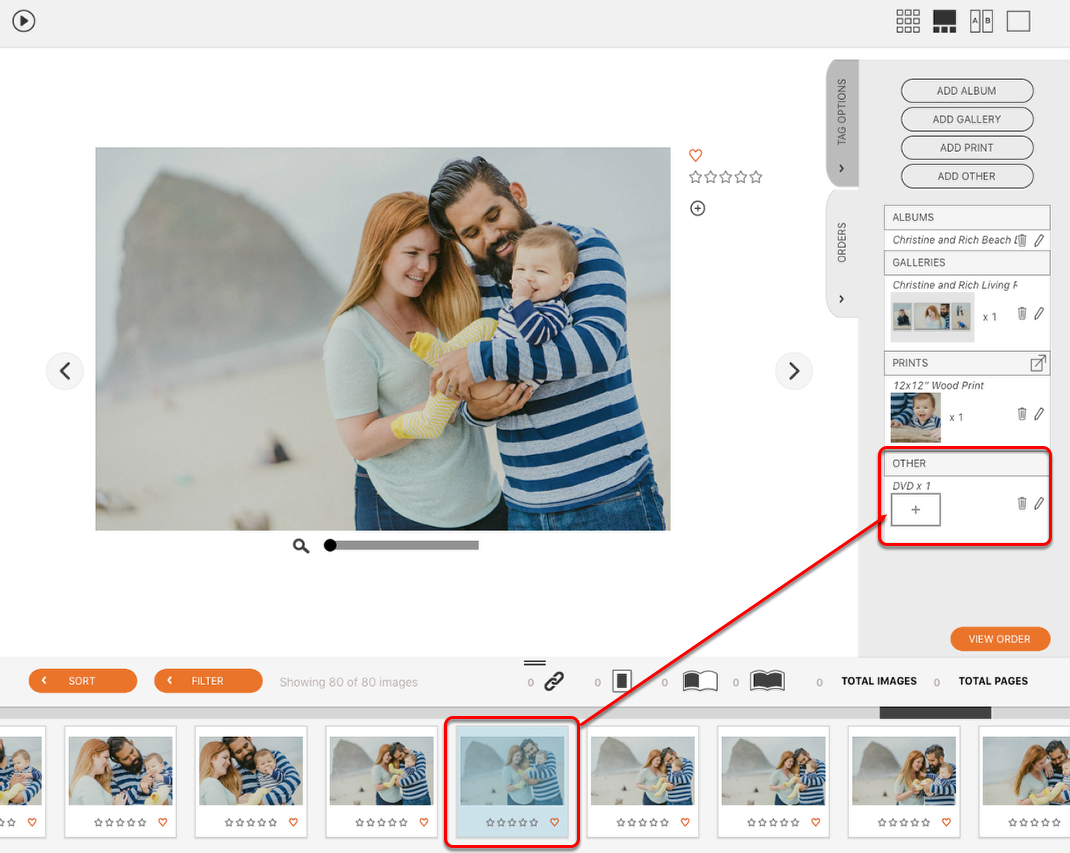
Once a custom has been added to your order form, you can drag an image from the image well to the order form.
Add Service
Select Add Service and add the service provided. Using Services allows you to set a different tax rate in the pricing settings for these items.
Updated Order

Your order will be automatically updating as you add items.
Clicking View Order will bring up your Order Builder PDF
Order Builder
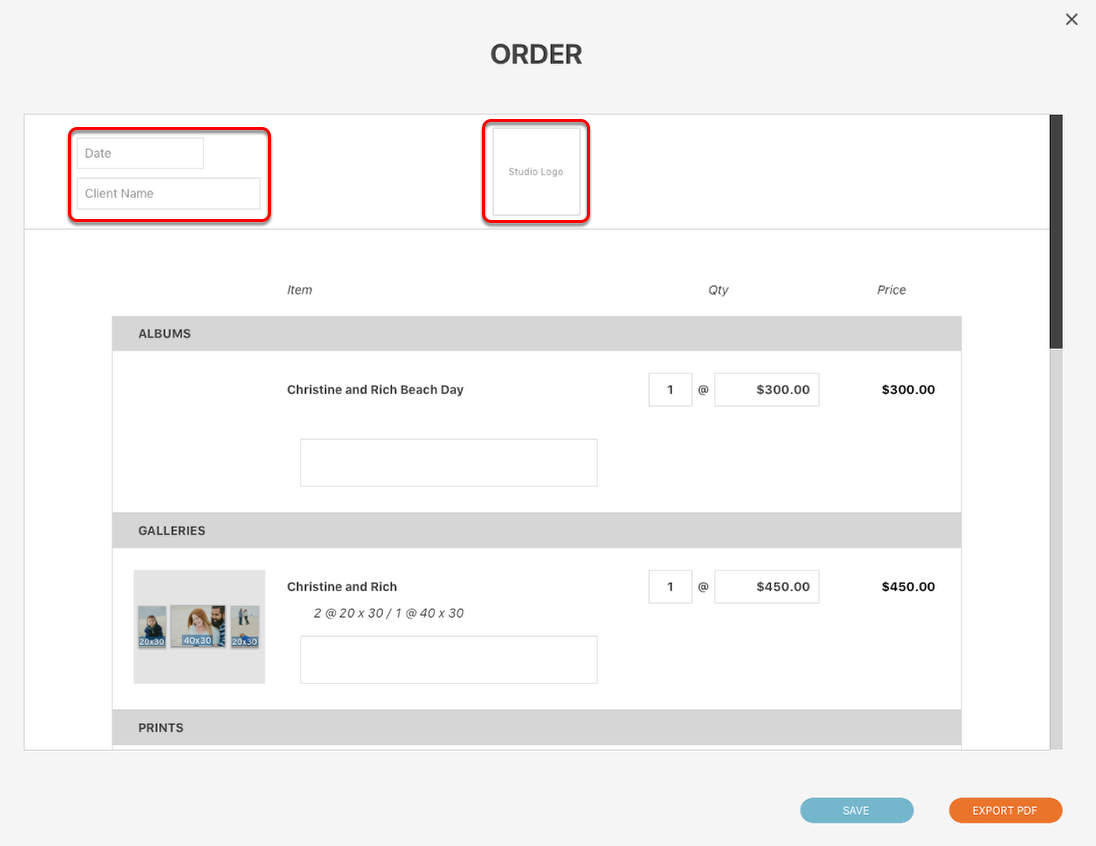
The items added through the Orders tab will be included in the Order Builder PDF. You will be able to add a Date and your Client's Name.
If you have already added a logo through the Gallery Designer Settings menu, this will appear. If you need to add one you can click the "Studio Logo" space and a Finder window will open.

After all the items have been listed, you have the option to edit the Discount and Tax amounts. This will automatically update the Total.
Any legal information that was added in the Gallery Designer Settings menu will appear. You can also add it to the PDF at this point.
When everything has been included in the Order Builder, you can choose to Save the order, or to Export the PDF.